Maintaining Veeam Kasten
Over Time
Modules 01 to 03 left you with a deployed, configured Veeam Kasten for Kubernetes instance. This module is the year after that: keeping it current, watching its health, and protecting the protector itself — the same patch-watch-back-up instincts you run today, pointed at a system that lives inside the cluster it protects.
- Plan a Veeam Kasten upgrade that respects the supported version window and the catalog free-space requirement
- Explain how Kubernetes and distribution version support sets the pace of your upgrade calendar
- Monitor Veeam Kasten itself — dashboard compliance states, Prometheus metrics, and alerting
- Collect the right diagnostics before you open a support case
- Configure, schedule, and test Veeam Kasten Disaster Recovery so the catalog outlives the cluster
- Describe what garbage collection cleans up, and why retiring a restore point may not free space right away
Day two: you now own the protector
This section maps your Veeam Data Platform maintenance routine onto Veeam Kasten: the equivalent of patching, job-health checking, and configuration backup — and where each parallel stops being useful.
As a Veeam Data Platform administrator you have a rhythm: patch on your schedule, read job sessions in the morning, keep a configuration backup. Veeam Kasten asks for the same three habits in a different shape — a set of services running inside the cluster it protects, upgraded with the Helm release you installed, observed through metrics rather than an open console, and protected by a policy it creates for itself.
Two differences change the calendar. Cadence: Veeam Kasten ships far more frequently than Veeam Data Platform — the maintenance guidance is to always upgrade, noting releases every two weeks. And the floor moves: distribution versions no longer actively supported by their vendor or community are not supported by Veeam Kasten either, so a cluster upgrade you do not own can put your backup platform out of support.
Two ideas to carry through this module
Everything that follows — upgrades, monitoring, catalog protection, housekeeping — falls out of these two.
Veeam Kasten runs as services in a namespace on the cluster, so it inherits the cluster's fate: node loss, storage failure, a namespace deleted by accident, an unsupported Kubernetes upgrade.
Restore points are only useful while something knows they exist — the catalog is that something: Veeam Kasten's own record of every restore point, policy, and action, playing the role the configuration database plays for a Veeam Backup & Replication server. Veeam Kasten Disaster Recovery exists to protect that catalog, and catalog storage space is also what gates your upgrades.
| Your Veeam Data Platform habit | The Veeam Kasten equivalent | Where the parallel breaks |
|---|---|---|
| Patch the backup server, then upgrade components | Upgrade the Helm release in the Veeam Kasten namespace, reusing your current values | Two constraints have no console equivalent: a four-version maximum per upgrade, and at least 50% free space in catalog storage |
| Read job sessions in the console each morning | Read the dashboard's compliance states, then the action metrics behind them | Alerting is something you wire up: Veeam Kasten exposes a Prometheus endpoint for a central system to extract data from |
| Keep a configuration backup of the backup server | Enable the Veeam Kasten Disaster Recovery (KDR) policy, which backs up Veeam Kasten's own resources and catalog to a location profile | Recovery depends on a passphrase you stored and a location profile configured on the target cluster |
| Watch repositories for space and stale data | Let the garbage collector clean up resources that are orphaned or past their expiration period | Retiring a restore point does not always free space right away, and deduplication can make the reclamation minimal |
Three of the four duties above — upgrades, dashboard health, catalog protection — touch catalog storage. If you take one number from this module, take 50%: the free space Veeam Kasten needs in catalog storage for upgrades.
Upgrading Veeam Kasten, and keeping pace with the cluster
The upgrade rules, the command that performs the upgrade, and a planner for deciding whether you are one hop or several from current — plus the version floor you do not control: the Kubernetes and OpenShift releases underneath you.
The two rules that decide your upgrade plan
Veeam Kasten upgrades are supported across a maximum of four versions (for example, 2.0.10 to 2.0.14). If your instance is further behind, a step upgrade process is recommended, using the --version flag with helm upgrade to control the version jumps — and at least 50% free space is required in catalog storage.
You do not have to work the arithmetic out by hand: the System Information page (Settings menu, navigation sidebar) shows catalog free space and your recommended upgrade path. From a terminal, k10tools primer upgrade finds the recommended path and checks there is adequate space, for Helm deployments — it requires internet access to gcr.io, so on an air-gapped cluster use the System Information page instead. Download k10tools before you need it: it ships separately for Linux, macOS, and Windows, linked from the Veeam Kasten Tools page.
./k10tools primer upgradeA release may perform a catalog schema upgrade, which requires at least 50% of free space in the catalog-pv-claim persistent volume — the claim's size may need increasing first. The figure is in the dashboard under Settings > System Information > Upgrade Status.
The upgrade itself
An upgrade is a Helm upgrade of the release you installed — the documented example assumes the kasten-io namespace and release name k10. The sequence refreshes the chart repository, captures your current values, and upgrades using them, so your configuration survives.
helm repo update && \
  helm get values k10 --output yaml --namespace=kasten-io > k10_val.yaml && \
  helm upgrade k10 kasten/k10 --namespace=kasten-io -f k10_val.yaml
For a step upgrade, the same sequence carries a pinned version — this is the form the upgrade primer prints as its recommended upgrade path, with the target release on the end.
helm repo update && \
  helm get values k10 --output yaml --namespace=kasten-io > k10_val.yaml && \
helm upgrade k10 kasten/k10 --namespace=kasten-io -f k10_val.yaml --version=4.5.6Read the Upgrade Notes for every release you pass through, not only the one you land on — that is where the breaking details live. If Generic Storage Backup is in use and a new Kanister-tools image ships, extra steps may be needed to update the Kanister sidecar image.
| Recent Upgrade Notes example | What breaks if you skip it |
|---|---|
An app_namespace label was added to per-application metrics |
Prometheus queries that pin the exact label set may need updating |
Metrics sourced through Red Hat ACM Observability moved from cluster_id to cluster_uid |
Dashboards and alert rules filtering on the old label need changing |
| Policy, profile, and action names became limited to 63 characters | Names above that are rejected at creation time |
Keeping pace with Kubernetes
The other half of staying current is the platform underneath: Veeam Kasten publishes the certified Kubernetes distributions and respective OpenShift versions it supports. A single release can move both ends of that list — 8.5.9 added support for Kubernetes 1.34 and removed support for Kubernetes 1.30, while OpenShift 4.17 clusters continued to be supported.
| Kubernetes | Red Hat OpenShift | Notes |
|---|---|---|
| 1.34 | 4.21 | Supported |
| 1.33 | 4.20 | Supported |
| 1.32 | 4.19 | Supported |
| 1.31 | 4.18 | Supported |
| 1.30 | 4.17 | Kubernetes version only supported when deployed as an OpenShift cluster |
| 1.29 | 4.16 | Kubernetes version only supported when deployed as an OpenShift cluster |
Check the matrix in the guide for the release you are running before you plan a cluster upgrade.
Put the cluster's Kubernetes upgrade on the same calendar as the Veeam Kasten upgrade: a single release can add one supported version and remove another. If the platform team moves first, your options narrow to whichever release supports the new version; moving Veeam Kasten first keeps the choice. Agree in writing who signs off on any cluster upgrade that would drop the running release out of the supported matrix — the published list of certified Kubernetes and OpenShift versions — otherwise the backup platform loses support by nobody's decision.
Watching Veeam Kasten itself
From the morning glance to the support case: three layers of monitoring, the alerts worth creating first, and the order to gather diagnostics in when something looks wrong.
Layer one: the dashboard
The top of the dashboard shows the cluster's applications, its policies, and a summary of the backup data footprint. Filtered to applications with stateful services, each lands in one of four states — the closest thing here to your morning read of job sessions.
Unmanaged
No protection policy covers this object.
Non-compliant
A policy applies, but its actions are failing or have not been invoked yet — for example, right after policy creation.
Compliant
A policy applies and its service-level agreements (SLAs) are being respected.
Removed
Objects that no longer exist on the cluster; filter to this state to find a removed application and restore it.
Layer two: the built-in Prometheus instance
Veeam Kasten integrates with Prometheus, exposing an endpoint a central system can extract data from; the built-in instance defaults to 8Gi of persistent storage and a 30d retention period, changeable through the prometheus.server.persistentVolume.size and prometheus.server.retention Helm values. Leave that server enabled — disabling it reduces functionality including usage data, reporting, and the multi-cluster dashboard, and it can be re-enabled during a Helm upgrade with --set prometheus.server.enabled=true.
Action metrics are the ones you will query first: Veeam Kasten records counts for cluster and application-specific actions, labels them with the action's context, and includes the final status as state for ended actions — values including pending, running, attempt_failed, failed, succeeded, cancelled, skipped, and deleting.
sum(round(increase(action_ended_total{action="backup",state="succeeded"}[24h])))Read it as: how many backup actions finished successfully in the last 24 hours — action_ended_total is the metric, the braces filter to successful backups, [24h] is the lookback window, and increase, sum, and round collapse it to one number.
Swap the labels and you have the query that matters more: sum(round(increase(action_ended_total{action="restore",state="failed"}[1h]))) returns failed restores in the past hour.
Layer three: your existing monitoring stack
Metrics leave the cluster two ways: Prometheus remote write pushes them to Prometheus-compatible endpoints such as Grafana, Datadog, or Thanos — the recommended route for most use cases — or an external Prometheus scrapes the built-in server. Grafana visualizes what Prometheus collected; alerts fire when metrics cross your thresholds. That stack usually belongs to a platform or observability team — name who owns wiring the two alerts below before you assume they exist.
The product's own guidance: alert on any actions where state=failed, and on Catalog Volume Used Space > 50%, because that condition could impact Veeam Kasten upgrades. The second is the alert that protects your upgrade window from Section 02. For version tracking, the k10_build_info Prometheus gauge metric exposes the running version as a label.
When something looks wrong
From "that looks wrong" to a support case
Work down this list rather than starting at the bottom. Click a step to see what it involves — one opens at a time.
-
Confirm which actions are failing and on which applications, using the compliance states and the action list. A non-compliant application tells you a policy's actions are failing or have not run yet.
-
Admin users running 4.5.7 or later can get support logs from the System Information page under the Settings menu in the navigation sidebar — no terminal required.
-
The debug script generates
k10_debug_logs.tar.gzwith separate log files per Veeam Kasten service; it assumes your default context points at the cluster and thekasten-ionamespace, with flags for a different namespace or output file.--prom-durationalso gathers metrics from the built-in Prometheus server (duration drives size);--prom-metrics-onlyseparates metric from log collection. -
The
k10toolsbinary has commands that help validate whether a cluster is set up correctly before installing Veeam Kasten and debug the Veeam Kasten micro services. Admin users can also validate storage classes from the System Information page — the state "Unknown" is shown until validation is run. -
Support runs through Veeam Kasten Community Support or a case opened at the Veeam customer portal; collecting the bundle first turns a case into a diagnosis instead of a request for logs. Before the case goes in, check the Veeam knowledge base filtered to Veeam Kasten (veeam.com/knowledge-base.html) — searching the exact error text often ends the incident there — and the Veeam Kasten support group on the Veeam Community Resource Hub (community.veeam.com).
curl -s https://docs.kasten.io/downloads/9.0.2/tools/k10_debug.sh | bash;The bundle also includes a Prometheus health-check section — curated metrics for the instance's storage and retention health.
The two kubectl verbs under all of it
Every step above eventually rests on two generic Kubernetes commands — cluster tooling, not Veeam Kasten features — that map onto triage instincts you already have.
| The command | The question it answers | Your existing instinct |
|---|---|---|
kubectl get pods |
"Is it running?" — one line of live state per pod, the same view the install walkthrough had you watch in Module 03. | Scanning the job monitor for red before reading anything else. |
kubectl describe on the stuck pod |
"Why is it broken?" — full detail for one resource, ending in an Events list that records what last went wrong (a failed image pull, an unschedulable pod, a failed mount). | Opening the job's log after the monitor showed red — evidence first, changes second. |
Every escalation path above assumes you can answer these two questions before the case is opened. A copyable form of the second: kubectl describe pod <pod-name> --namespace kasten-io — take the pod name from the kubectl get pods output. A third verb, kubectl explain, prints the cluster API's own documentation for any resource field — useful later, once you express policies as code.
Who backs up the backup system?
The section your director or CISO will ask about first: what Veeam Kasten Disaster Recovery protects, which mode fits your storage, and the recovery path from an empty cluster back to a working catalog.
Veeam Kasten is a stateful application on the cluster, so it must back up its own data — the job of the Veeam Kasten Disaster Recovery (KDR) policy. KDR recovers the platform from unintended deletion of Veeam Kasten or its restore points, failure of its underlying storage, or accidental destruction of the cluster it is deployed on; the API exposes the same capability as a KastenDR object for listing KDR restore points and restoring from one.
The Veeam Data Platform parallel is configuration backup: both are scheduled, both protect the metadata that makes restore points findable, both are worthless if you cannot decrypt them. Where it breaks is the dependency list — after enabling KDR, retain the source Cluster ID, the KDR passphrase or external secret manager details, and the KDR location profile details and credential, without which restore point catalog recovery will not be possible.
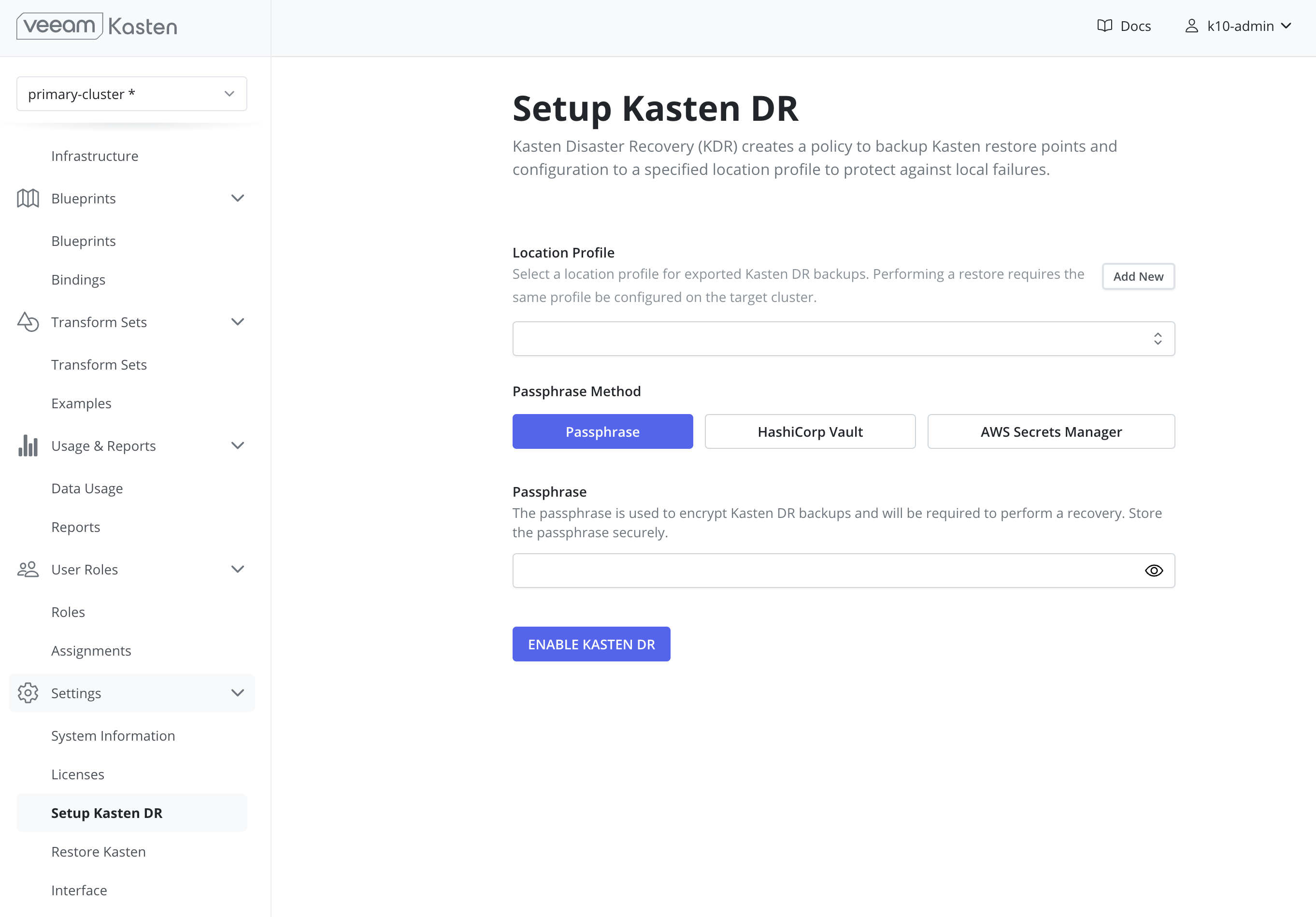
Choose a location profile that supports immutable backups — the guide states this strongly, so the catalog can be recovered after incidents including ransomware and accidental deletion — and check the target: Veeam Repository location profiles cannot be used as a destination for KDR backups. Passphrase options include a passphrase you supply, HashiCorp Vault, and AWS Secrets Manager, with Azure Key Vault Secrets added as a passphrase provider for Disaster Recovery.
Choosing a KDR mode
The KDR mode specifies how internal Veeam Kasten resources are protected; set it before enabling the KDR policy — changes only apply to future runs. From v8.0.0 all installations default to Quick DR (Local Catalog Snapshot), which should only be enabled if the storage provisioner behind Veeam Kasten's persistent volume claims supports both creating storage snapshots and restoring the existing volume from one.
| Mode | Recommended when | What each policy run does |
|---|---|---|
| Quick DR (Local Catalog Snapshot) | Storage used for Veeam Kasten persistent volume claims supports both creating storage snapshots and provisioning a volume from a snapshot | Creates a local snapshot of the catalog persistent volume claim and incrementally exports only the minimally required catalog data |
| Quick DR (Exported Catalog Snapshot) | Storage can create snapshots but cannot provision a volume from one; or you want to reduce local snapshot retention without affecting exported backups. May be selected on any snapshot-capable storage for the highest level of resilience | Everything the local-snapshot mode does, plus an incremental export of the catalog snapshot data |
| Quick DR (No Catalog Snapshot) | No available cluster storage supports snapshot creation, or there is no requirement to recover local restore points or action history | Incrementally exports only the minimally required catalog data; does not support recovery of local restore points and action history |
| Legacy DR | Supported for backwards-compatibility only — the mode is deprecated and will be removed in a future release, and all clusters should be migrated to a supported Quick DR configuration | Exports a full copy of the catalog database |
Quick DR modes protect more resource types than Legacy DR — policy presets, transform sets, blueprint bindings, basic user policies; reports, action pod specs, and audit configuration are protected by neither. Legacy mode is selected explicitly with the Helm value kastenDisasterRecovery.quickMode.enabled=false.
The policy KDR creates for you
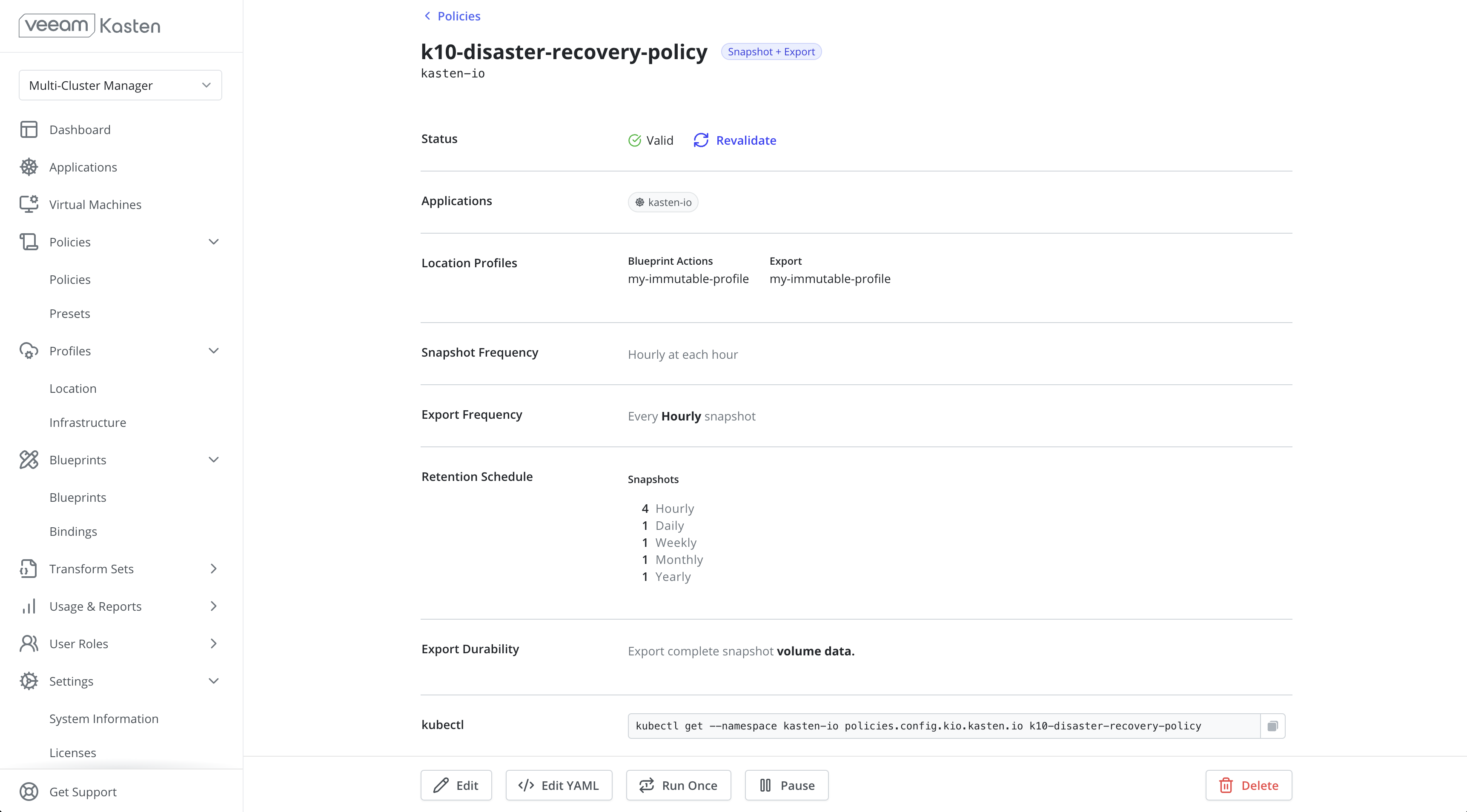
Enabling KDR automatically creates k10-disaster-recovery-policy, which backs up Veeam Kasten's resources and catalog data to an external location profile. It appears on the Policies page; Run Once starts a manual backup, Edit changes frequency and retention. Match its frequency to the lowest recovery point objective (RPO) policy on the cluster.
The recovery path, end to end
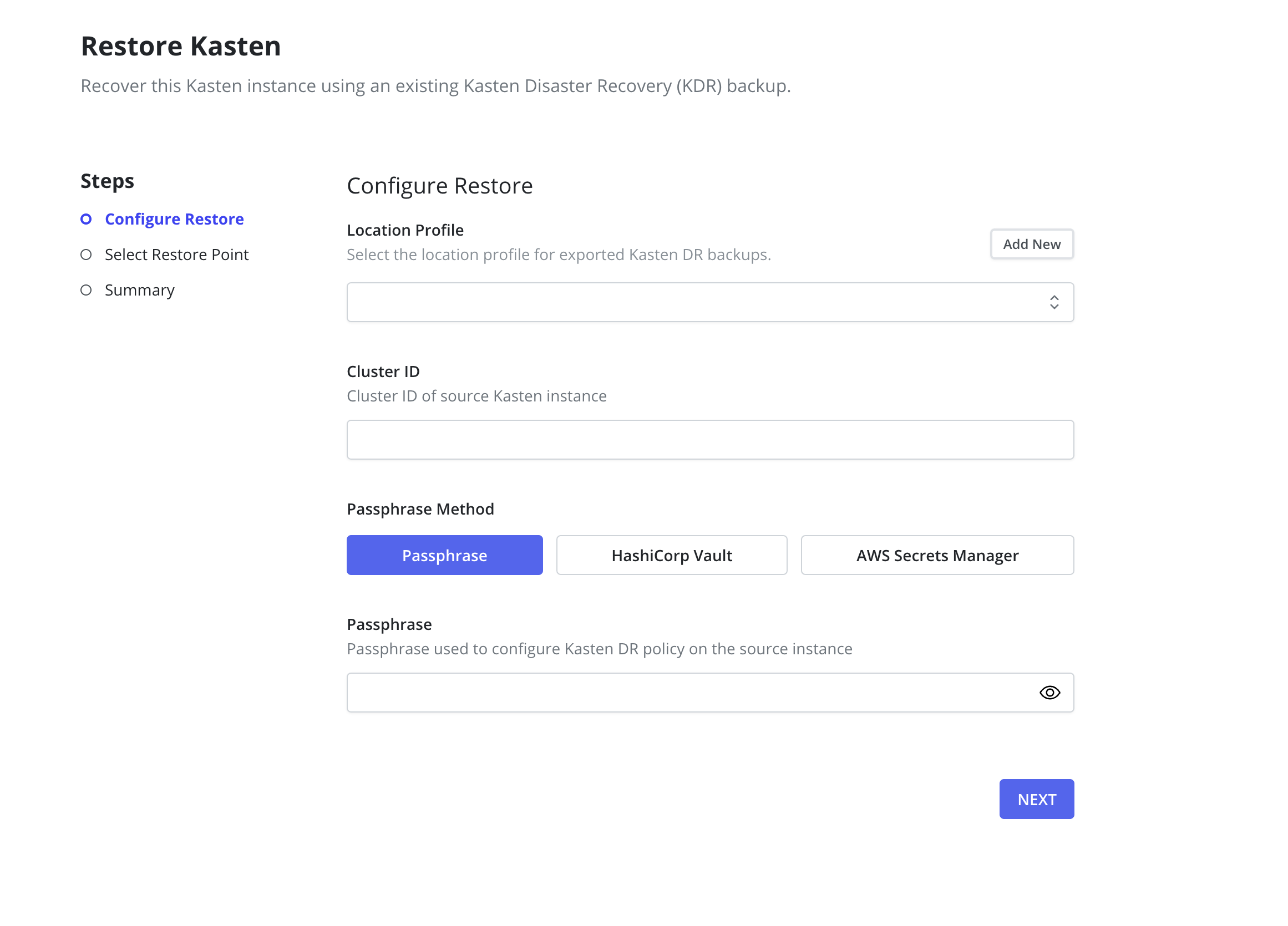
The guide's recommendation is to enable Veeam Kasten DR and regularly test the process. Treat the KDR test like the restore tests you already run: on a schedule, with the passphrase retrieved from where it is meant to live, not from your own notes.
"Who backs up the backup system?" ends a lot of Kubernetes protection projects late. The answer here is concrete: a dedicated policy over the platform's own namespace, the catalog exported encrypted to an immutable external location profile — surviving ransomware and accidental deletion — and recovery onto a new cluster from that export.
Housekeeping, and a healthy week in the life
The last section covers the cleanup Veeam Kasten does on its own, the space behavior that surprises people, and a maintenance rhythm you can put on a calendar this week.
A garbage collector daemon cleans up resources that are orphaned or past their expiration period. Its list is specific: actions above the retained maximum (oldest first, per action type), RestorePointContents for expired manual backups per their expiresAt value, and the temporary objects restores leave behind — CSISnapshot objects, persistent volumes, profiles, services, network policies, secrets, and config maps. Export pods are cleaned up after the configured grace period.
| Helm option | What it tunes |
|---|---|
garbagecollector.daemonPeriod | The length of time between two consecutive garbage collection events, in seconds |
garbagecollector.keepMaxActions | How many finished actions to keep — no actions deleted if the value is less than or equal to zero |
garbagecollector.actions.enabled | Enables the action collectors |
When restore points are retired — manually or by a retention schedule — the cleanup is not immediate for every resource, and backup data in an object store may take a significant amount of time to be removed. Shared data references, aggregated data awaiting garbage collection, immutable-backup version retention, and re-referencing safety windows all delay it — and deduplication can mean minimal or no reclamation at all.
Log volume is the other thing worth setting deliberately: retention is tuned with Helm values including a rotation count and a size threshold that triggers rotation, applied during an upgrade of the release.
helm upgrade k10 kasten/k10 -n kasten-io --reuse-values \
  --set logging.retention.rotateCount=12 \
  --set logging.retention.maxFileSize=2G
A healthy week in the life
Nothing below is a product feature — it is a rhythm assembled from this module's maintenance guidance. The daily items take minutes; the monthly and quarterly ones decide whether a bad day goes well.
- 1DailyRead the dashboard: any application that moved to non-compliant, and any failed action.
- 2WeeklyConfirm the KDR policy is running to schedule, and check catalog storage space against the 50% mark.
- 3MonthlyTest restores rather than waiting for a disaster — in the same namespace, a different namespace, and a different cluster — and test the KDR process itself.
- 4QuarterlyPlan the next upgrade hop, and review the supported Kubernetes and OpenShift matrix against the cluster's roadmap.
- Monitoring configuration is reviewed as the deployment evolves — the right metrics, alerts for new issues.
- Alerts exist for failed actions and for catalog volume used space, the two conditions the guide calls out.
- The KDR passphrase is retrievable by someone other than you, from a passphrase provider rather than a personal note. Name that second person or team in the runbook — it is a decision your team makes explicitly, not a default the product supplies.
- The upgrade path is known before the upgrade window opens, from the System Information page or the upgrade primer.
Check your understanding
Six questions on the maintenance duties covered in this module. Each one has a single best answer, and every option explains itself.
What you covered
Day-two ownership of Veeam Kasten, from the upgrade calendar to the catalog that has to outlive the cluster.
Next: Module 05 turns from the platform to the work you do with it — building and scheduling policies, the restore paths, access control, and the daily administration routine.